Top shortcuts
Open Credit customers, Reports, or Sales charts without leaving your current shift.
Operator handbook
Record meter sales, credit bills, extra income and expenses. Then save the shift, review the totals, share a professional PDF, back up the entries as JSON, or build a customer credit report.
First shift
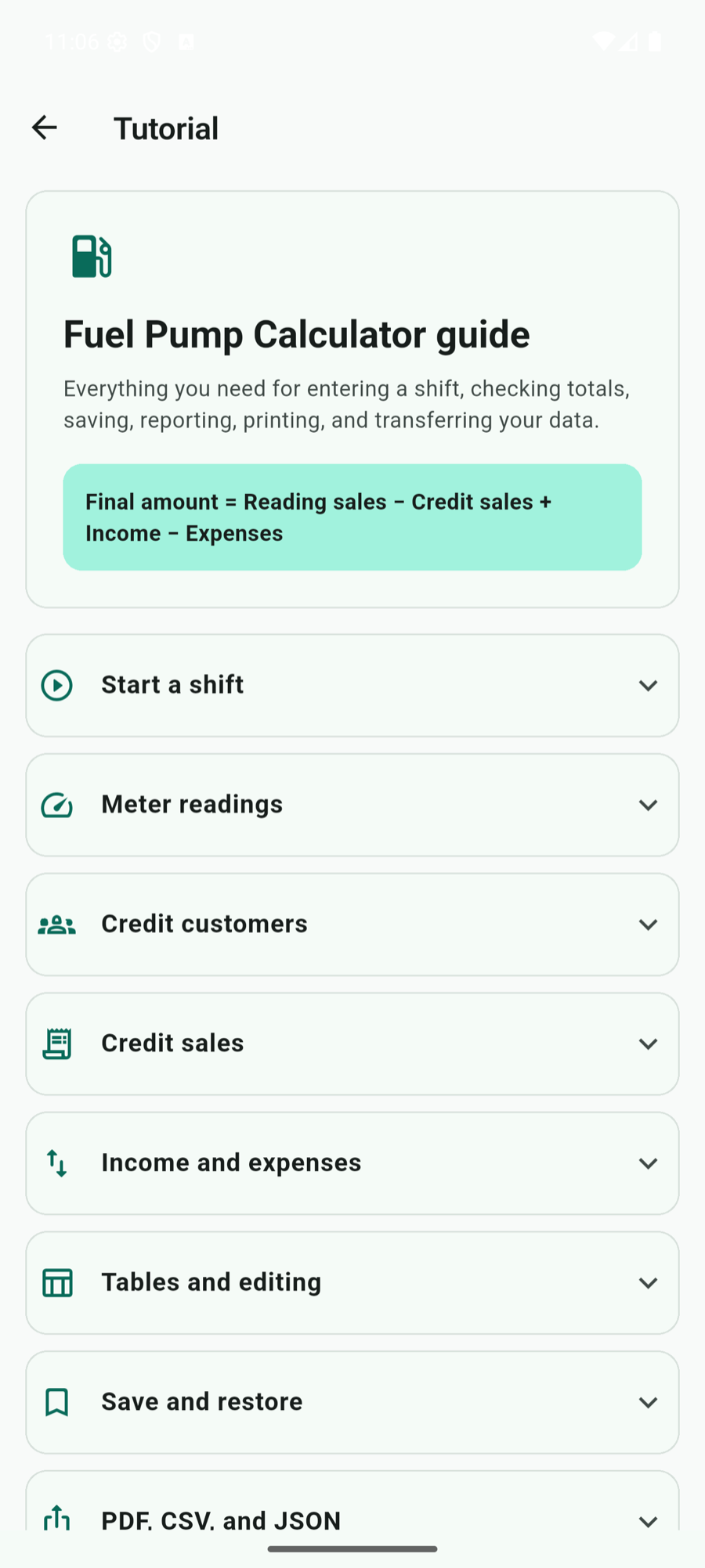
Home screen
Open Credit customers, Reports, or Sales charts without leaving your current shift.
Shows the reading total, credit total, extras total and calculated final amount together.
Readings, credit sales, and income or expenses remain in separate spreadsheet-style tables.
The action area below the tables contains Save Data, New shift, PDF, and JSON controls. The three-dot menu contains Saved shifts, Export, Import JSON, Demo entries, Tutorial, Support, Remove ads, and Restore purchases when supported.
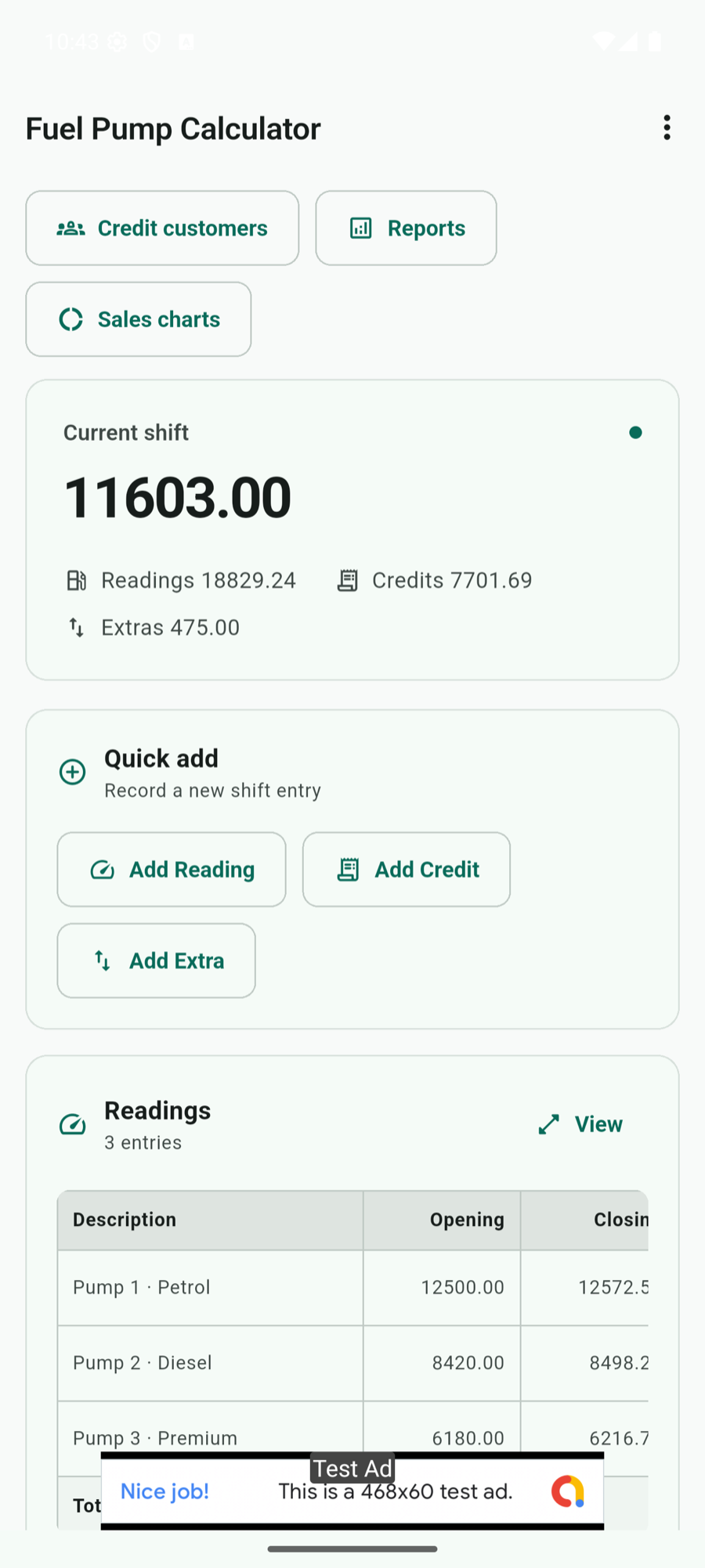
Meter sales
If the ending reading is lower, the app offers to swap the two values. Use the row menu to edit or delete a reading later.
Reusable details
Open Credit customers from the dashboard. Tap Add customer, enter the customer name, optional contact details, and vehicle numbers separated by commas. Customer cards can be edited or deleted.
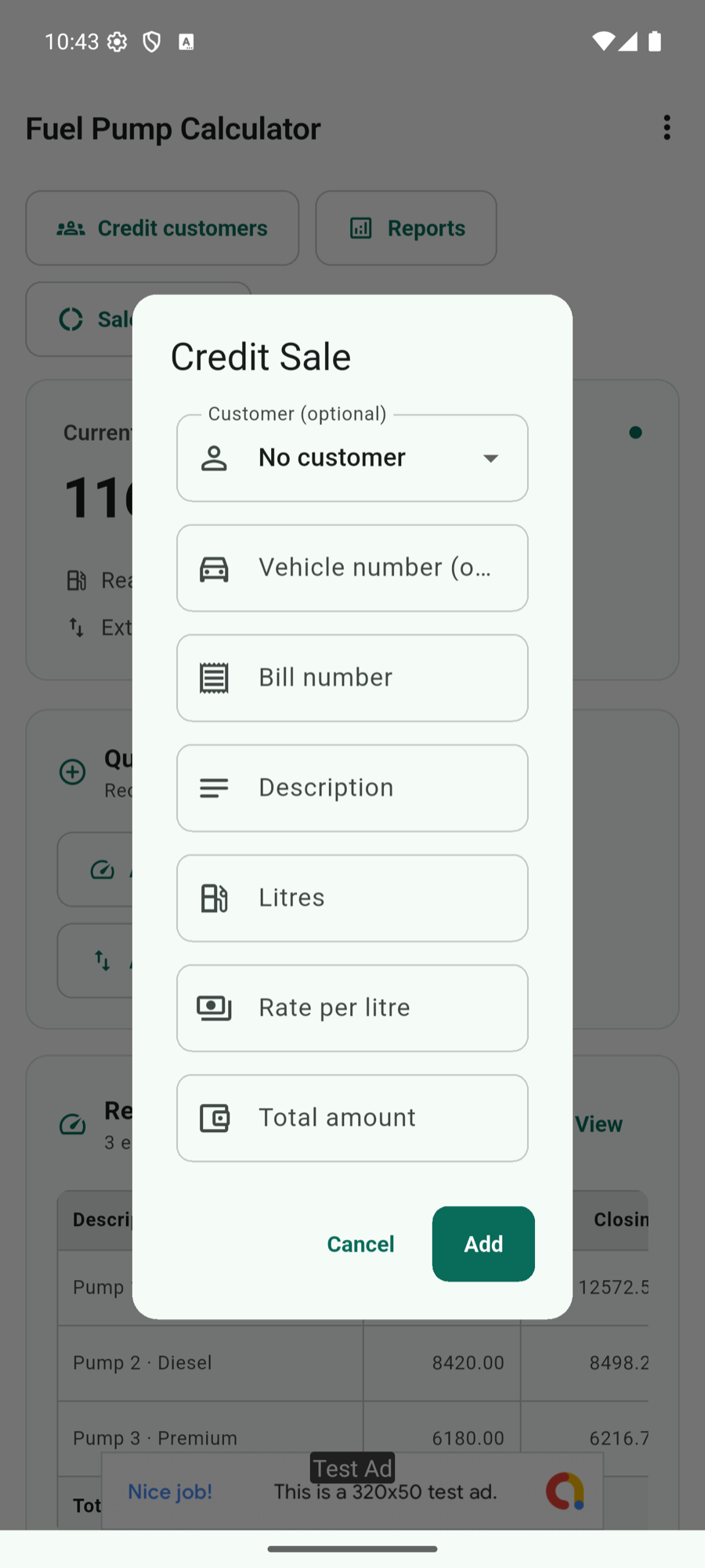
Outstanding sales
Card, UPI, swipe, or account settlements can also be recorded as credit bills by creating customers such as CARD, GPAY, or PETROCARD.
Cash movement
Tap Add Extra, choose Income or Expense, enter a clear description and amount, then add the entry. Income increases the final amount; expenses reduce it. Use the row menu to edit or delete an item.
Review
| Table | What it shows | Footer total |
|---|---|---|
| Readings | Start, end, litres, rate and sales amount | Total litres and reading amount |
| Credits | Bill, customer or vehicle, litres, rate and amount | Total credit litres and amount |
| Income & expenses | Type, description and signed amount | Income, expense and net totals |
Tap View above a table to fit the complete spreadsheet on screen. On the normal view, swipe horizontally when a table is wider than the device. Open the row’s three-dot action to edit or delete it.
Shift history
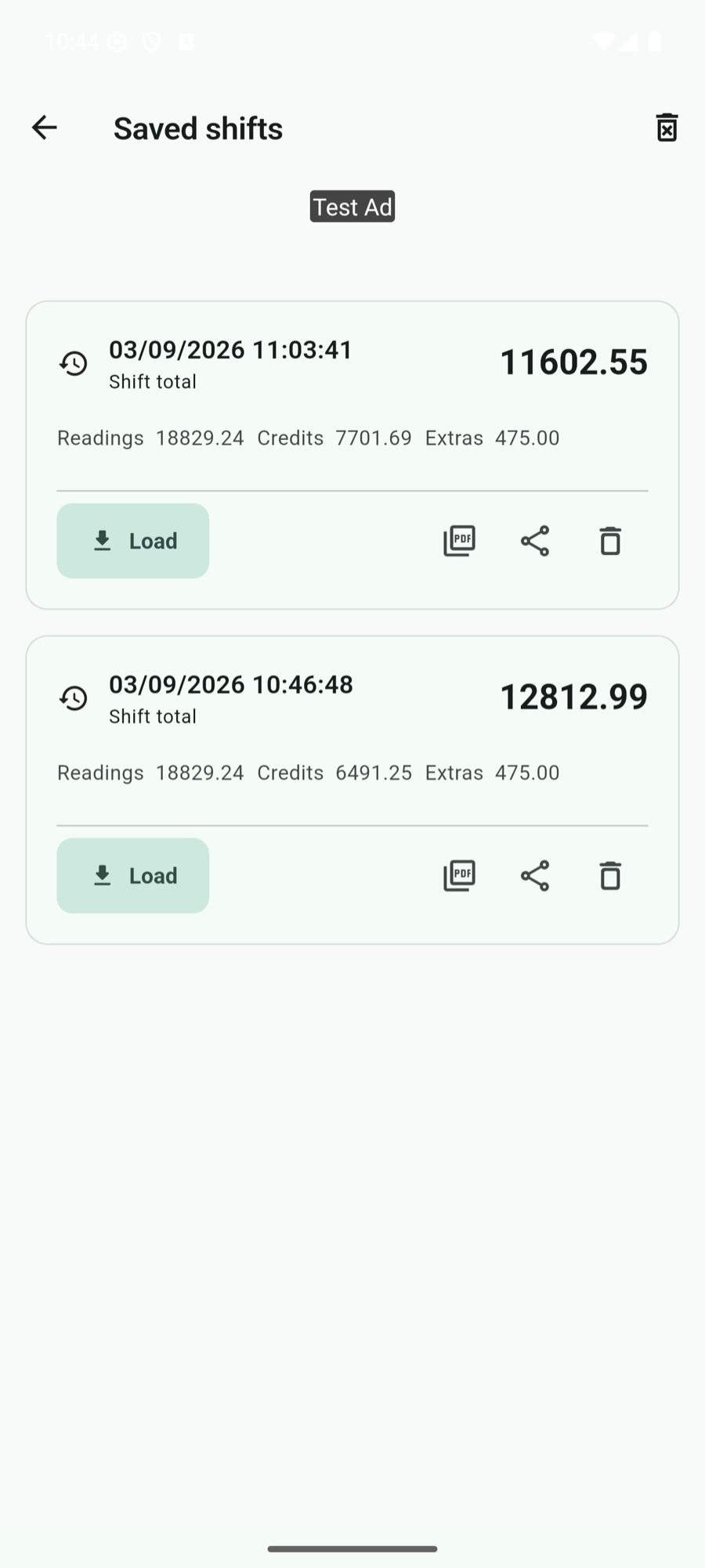
Shift rollover
Use New shift after every meter has a completed closing reading. The rollover is saved as one operation, so the previous shift remains available even if the next shift has not yet been completed.
Every completed closing meter becomes the matching opening meter in the new shift. Description and rate are retained.
New closing readings are blank. Credit sales, income, and expenses start empty for the new shift.
The completed shift remains visible with totals and separate tables, plus PDF and JSON sharing actions.
Move and restore
Open the three-dot menu, tap Import JSON, choose a Fuel Pump Calculator JSON file, review the entry counts, and confirm Replace entries.
Tap a compatible .json file in Files, Downloads, email, WhatsApp, or another app. Choose Fuel Pump Calculator from “Open with.” The app validates the file and shows the same confirmation before importing.
Customer history
Add named credit customers before recording bills when you want customer-specific reporting.
Visual review
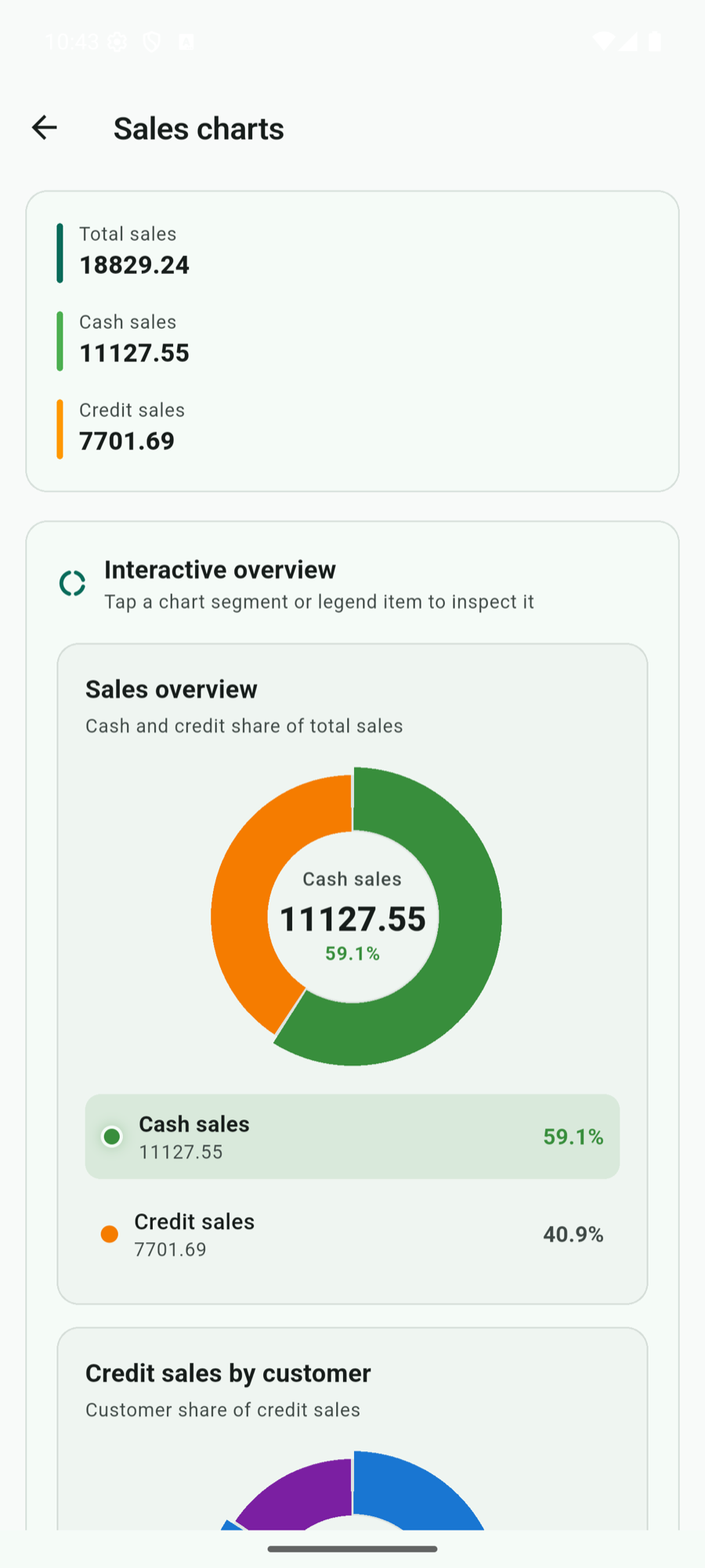
Tap Sales charts to open a separate chart screen. The first donut compares cash sales with credit sales. The second breaks credit sales down by customer. Tap a chart segment or legend item to inspect its value and percentage.
Practice safely
Open the three-dot menu and choose Demo entries. After confirmation, the current shift is replaced with sample readings, credit sales, income, and expenses. Use these entries to explore calculations, tables, charts, saving, sharing, and PDF output.
Optional purchase
On Android or iOS, open the three-dot menu and choose Remove ads to see the available one-time store product. If you already purchased it on the same store account, choose Restore purchases. Desktop and web versions do not show mobile ads or mobile purchases.
Reliable daily use
Check the rate, opening and closing readings, credit litres, and whether an extra was marked Income or Expense. The final formula is Reading − Credit + Income − Expense.
Tap View to fit the complete table on screen, or swipe the normal table horizontally for larger text.
Create or select a named credit customer and choose both dates. Credit entries recorded with No customer cannot appear under a named customer.
Confirm it was exported by Fuel Pump Calculator and is not larger than 10 MB. Other JSON formats are rejected to protect your current data.
Share the shift as JSON, send the file to the other device, then import it from the app menu or open it directly with Fuel Pump Calculator on Android.
Save or share anything important, then tap Clear current. Saved shifts remain available until you delete them separately.
Need more help?
Send the support team your name, reply email, a description of the problem, device information, and an optional screenshot. Never include passwords, payment details, or confidential customer information.
Ready for the next shift?
Open the illustrated online guide from the Tutorial screen whenever you need it.