Fuel Pump Calculator Complete tutorial Download on Google Play

Operator handbook

Run a complete shift from one clean screen.

Record meter sales, credit bills, extra income and expenses. Then save the shift, review the totals, share a professional PDF, back up the entries as JSON, or build a customer credit report.

Reading sales−Credit sales+Income−Expenses=Final amount
01

First shift

Quick start

  1. Add readings. Enter the opening meter, closing meter and product rate for every active nozzle or product.
  2. Add credit sales. Select a customer when available, then enter either litres or the total amount.
  3. Add other cash movements. Record extra income and every expense separately.
  4. Check the Current shift card. Confirm reading, credit, extra and final totals.
  5. Finish the shift. Save or share it, or tap New shift to archive it and carry the closing meters forward.
Good practice: Enter and check each section before pressing Save Data. A saved shift is a snapshot of the entries visible at that time.
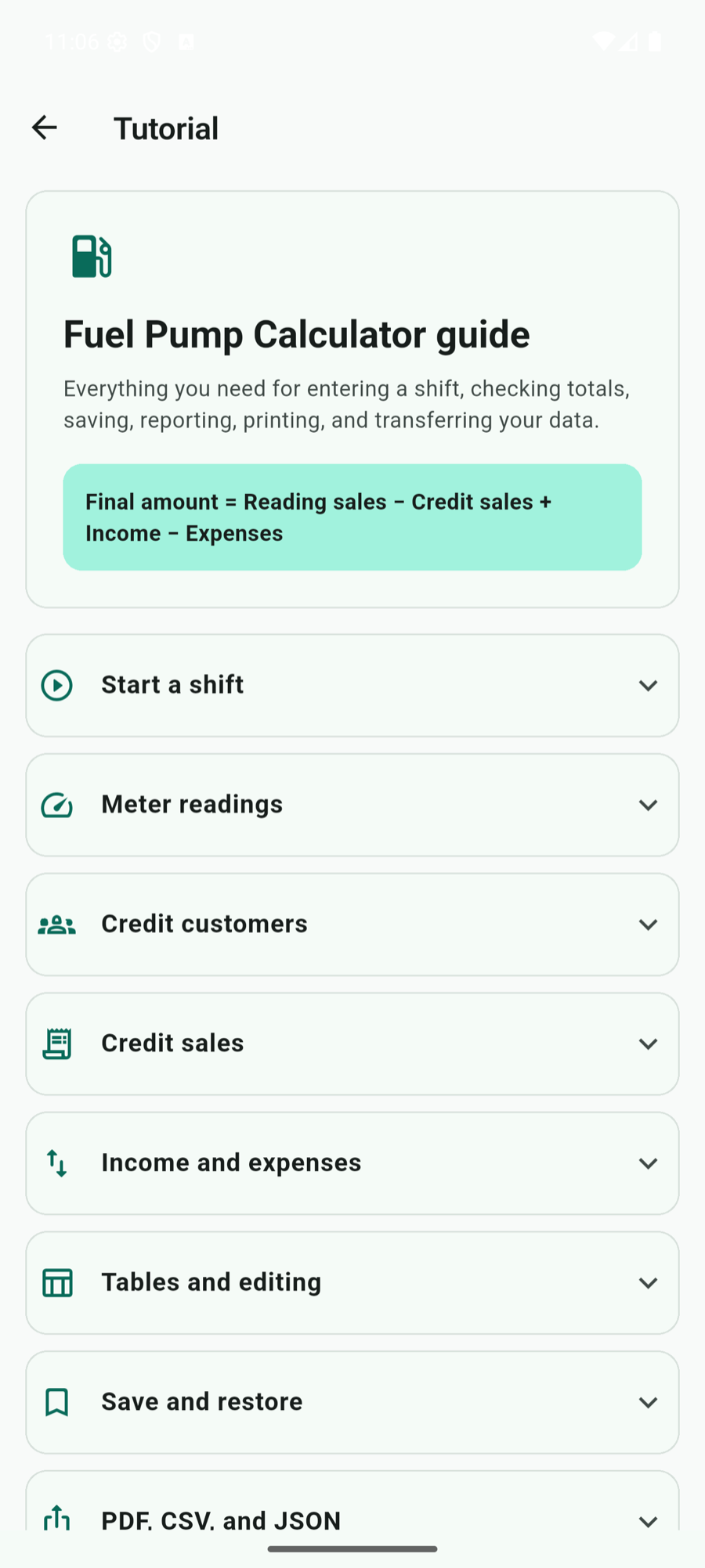
The in-app Fuel Pump Calculator tutorial with expandable help topics
Open Tutorial from the three-dot menu for help inside the app, even when you are offline.
02

Home screen

Understand the dashboard

Top shortcuts

Open Credit customers, Reports, or Sales charts without leaving your current shift.

Current shift

Shows the reading total, credit total, extras total and calculated final amount together.

Entry tables

Readings, credit sales, and income or expenses remain in separate spreadsheet-style tables.

The action area below the tables contains Save Data, New shift, PDF, and JSON controls. The three-dot menu contains Saved shifts, Export, Import JSON, Demo entries, Tutorial, Support, Remove ads, and Restore purchases when supported.
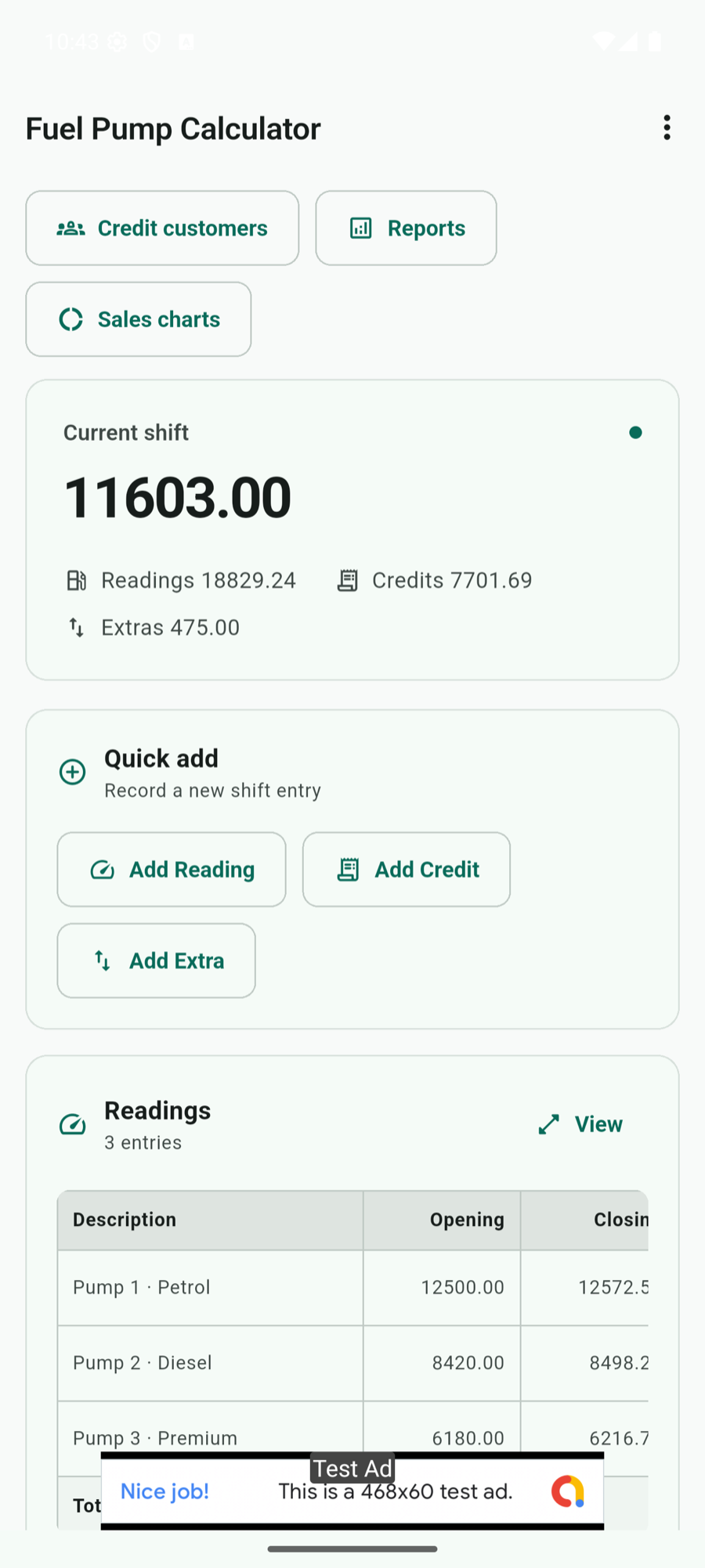
Fuel Pump Calculator dashboard showing shortcuts, current shift totals, quick-add buttons, and the readings table
The dashboard on Android: shortcuts, live shift totals, quick entry buttons, and spreadsheet-style tables.
03

Meter sales

Add a reading

  1. Tap Add Reading.
  2. Enter a description such as the nozzle, pump, or product name.
  3. Enter the Starting reading, Ending reading, and Rate per litre.
  4. Tap Add reading. The app calculates litres as ending minus starting and amount as litres multiplied by rate.
Ending reading − Starting readingLitres soldLitres sold × RateReading amount

If the ending reading is lower, the app offers to swap the two values. Use the row menu to edit or delete a reading later.

04

Reusable details

Manage credit customers

Open Credit customers from the dashboard. Tap Add customer, enter the customer name, optional contact details, and vehicle numbers separated by commas. Customer cards can be edited or deleted.

Why add customers? Their names appear in credit entries, customer reports, PDF tables, and the credit-sales chart. You can still record a credit sale with No customer.
05

Outstanding sales

Add a credit sale

  1. Tap Add Credit and optionally select a customer and vehicle.
  2. Enter the bill number, description, and rate per litre.
  3. Enter either Litres or Total amount. The other value is calculated automatically from the rate.
  4. Tap Add. Use No customer when the customer is unknown or not required.
When litres are enteredAmount = Litres × Rate
When amount is enteredLitres = Amount ÷ Rate

Card, UPI, swipe, or account settlements can also be recorded as credit bills by creating customers such as CARD, GPAY, or PETROCARD.
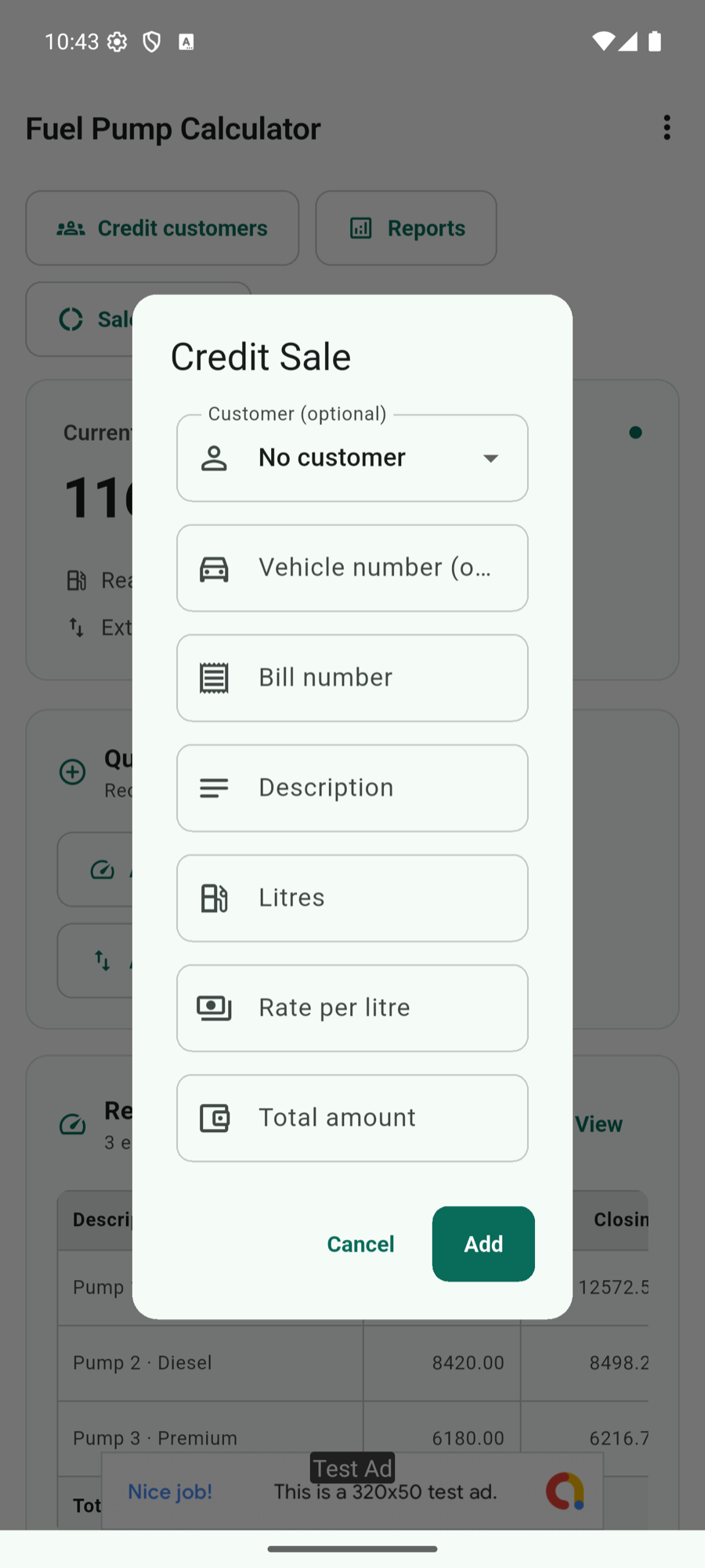
Credit Sale form with optional customer, vehicle, bill number, description, litres, rate, and total amount fields
The credit form accepts an optional customer and either litres or total amount.
06

Cash movement

Add income or an expense

Tap Add Extra, choose Income or Expense, enter a clear description and amount, then add the entry. Income increases the final amount; expenses reduce it. Use the row menu to edit or delete an item.

07

Review

Read the tables and totals

TableWhat it showsFooter total
ReadingsStart, end, litres, rate and sales amountTotal litres and reading amount
CreditsBill, customer or vehicle, litres, rate and amountTotal credit litres and amount
Income & expensesType, description and signed amountIncome, expense and net totals

Tap View above a table to fit the complete spreadsheet on screen. On the normal view, swipe horizontally when a table is wider than the device. Open the row’s three-dot action to edit or delete it.

08

Shift history

Save, load, and delete shifts

  1. Tap Save Data below the current tables. The current entries are saved with the date and time.
  2. Open the three-dot menu and choose Saved shifts.
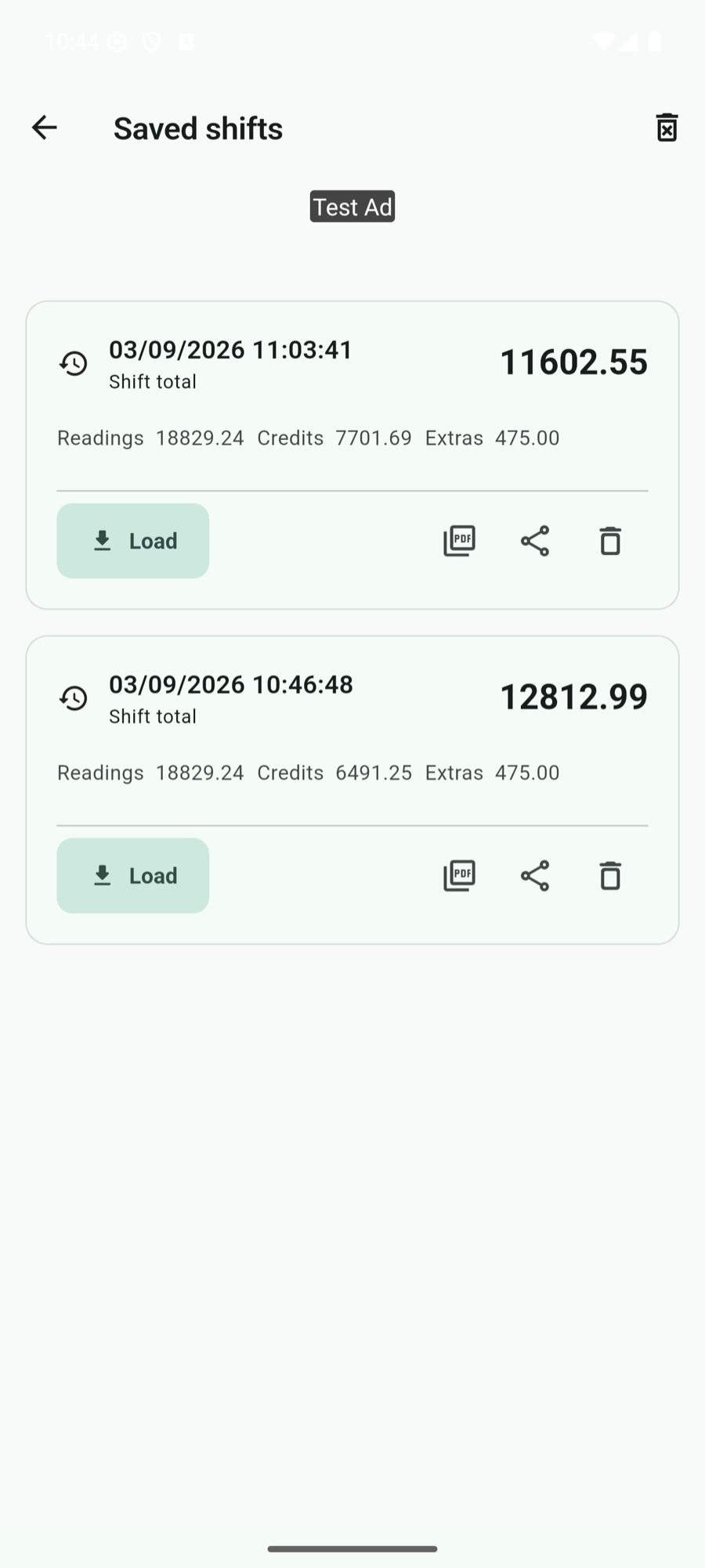
  3. Each card shows reading, credit, extras, and final totals. Tap Load to restore that shift.
  4. Use the PDF icon to export it, the share icon to send it, or the delete icon to remove it.
Before loading: Loading a saved shift replaces the entries in the current shift. Save or share the current shift first if you still need it.
Saved shifts screen showing dated shift cards with totals and load, PDF, share, and delete controls
Every saved shift keeps its date, time, totals, and load, PDF, share, and delete actions together.
09

Shift rollover

Create a new shift

Use New shift after every meter has a completed closing reading. The rollover is saved as one operation, so the previous shift remains available even if the next shift has not yet been completed.

  1. Check the Current shift totals and make sure every meter’s closing reading is correct.
  2. Tap New shift below the entry tables, then confirm Create new shift.
  3. The app saves the completed shift and immediately opens the Last shift report.
  4. Review the reading, credit, and income or expense tables. Share the completed report as PDF or JSON when needed.
  5. Tap Enter closing readings to continue. Each previous closing reading is already set as the new opening reading.
  6. Enter the new closing value for each meter. The opening value is locked, and the app will not accept a closing value below it.

Carried forward

Every completed closing meter becomes the matching opening meter in the new shift. Description and rate are retained.

Cleared automatically

New closing readings are blank. Credit sales, income, and expenses start empty for the new shift.

Last shift report

The completed shift remains visible with totals and separate tables, plus PDF and JSON sharing actions.

Closing readings can be entered later: If they are not yet available, leave the report using Back. The dashboard shows how many closing readings still need input and provides an Enter readings button.
Important: The app will not create another shift while any current closing reading is still pending. Complete those readings first.
10

Send and print

Share PDF, CSV, or JSON

Share as PDF

Tap Share as PDF below Save Data. The report contains professional tables, totals, a final summary, sales charts, customer credit breakup, app version, date and time.

Share as JSON

Tap Share as JSON to send a restorable backup containing readings, credits, extras, and customer information.

Export menu

Open the three-dot menu and choose Export for PDF, CSV, or JSON. PDF is best for viewing and printing; CSV is useful in spreadsheets.

Print a PDF

Open the exported PDF in the phone’s PDF viewer, then use that viewer’s Print command. Page headers, footers, tables and charts are prepared for A4 output.

11

Move and restore

Import a JSON entry file

From inside the app

Open the three-dot menu, tap Import JSON, choose a Fuel Pump Calculator JSON file, review the entry counts, and confirm Replace entries.

Directly from Android

Tap a compatible .json file in Files, Downloads, email, WhatsApp, or another app. Choose Fuel Pump Calculator from “Open with.” The app validates the file and shows the same confirmation before importing.

Backup tip: Share a JSON copy before clearing or replacing a valuable shift. Only JSON files exported in the Fuel Pump Calculator format can be imported.
12

Customer history

Create a credit report

  1. Tap Reports on the dashboard.
  2. Select a credit customer, start date, and end date.
  3. Tap Generate report to view matching bills and the total.
  4. Use the PDF or CSV action to export the results.

Add named credit customers before recording bills when you want customer-specific reporting.

13

Visual review

Use the interactive sales charts

Tap Sales charts to open a separate chart screen. The first donut compares cash sales with credit sales. The second breaks credit sales down by customer. Tap a chart segment or legend item to inspect its value and percentage.
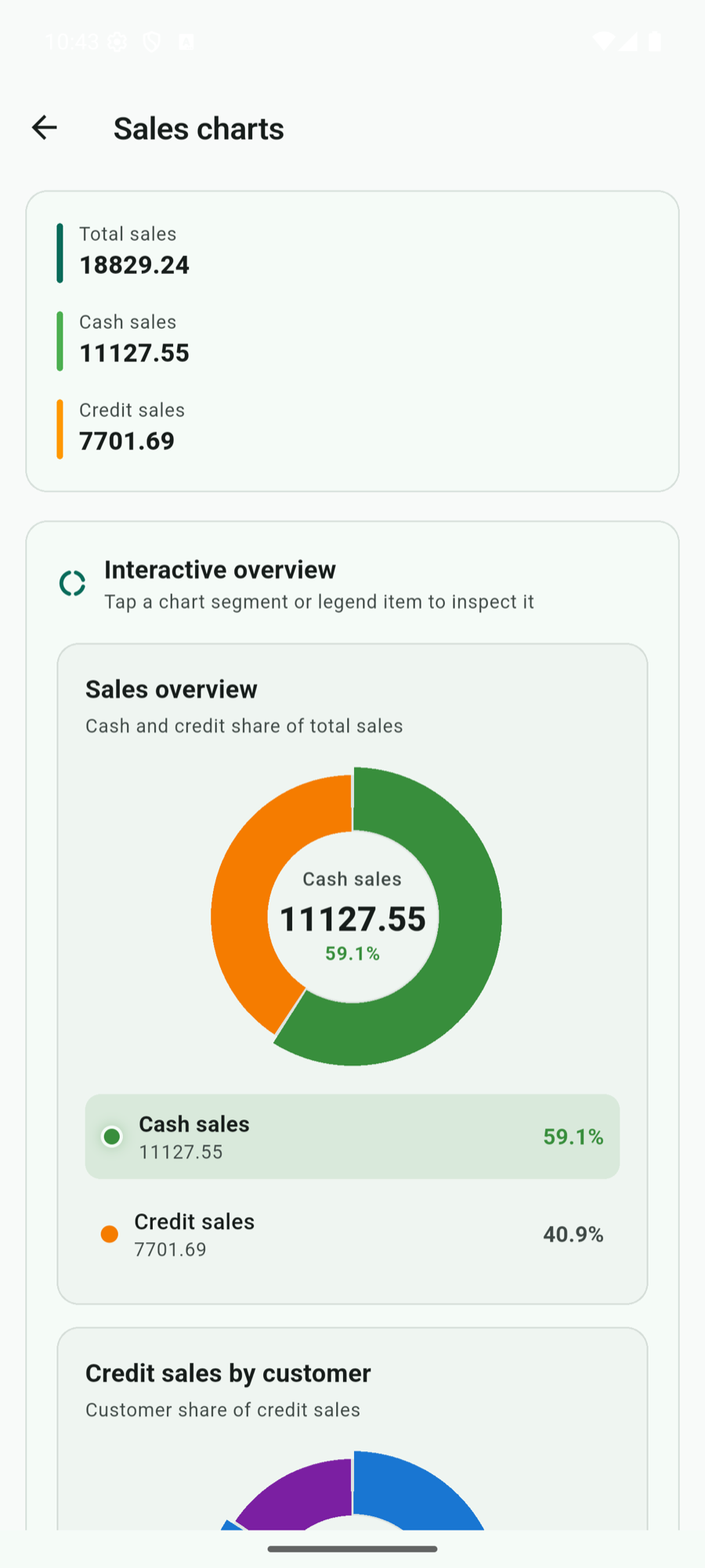
Interactive sales charts screen showing total, cash, and credit sales with a donut chart
Tap a coloured segment or legend row to inspect its amount and percentage.
14

Practice safely

Load demo entries

Open the three-dot menu and choose Demo entries. After confirmation, the current shift is replaced with sample readings, credit sales, income, and expenses. Use these entries to explore calculations, tables, charts, saving, sharing, and PDF output.

Remember: Demo entries replace the current shift. Saved shifts and customer records are not removed.
15

Optional purchase

Remove ads or restore a purchase

On Android or iOS, open the three-dot menu and choose Remove ads to see the available one-time store product. If you already purchased it on the same store account, choose Restore purchases. Desktop and web versions do not show mobile ads or mobile purchases.

16

Reliable daily use

Tips and troubleshooting

A total looks wrong

Check the rate, opening and closing readings, credit litres, and whether an extra was marked Income or Expense. The final formula is Reading − Credit + Income − Expense.

A table is wider than my phone

Tap View to fit the complete table on screen, or swipe the normal table horizontally for larger text.

I cannot generate a customer report

Create or select a named credit customer and choose both dates. Credit entries recorded with No customer cannot appear under a named customer.

A JSON file will not import

Confirm it was exported by Fuel Pump Calculator and is not larger than 10 MB. Other JSON formats are rejected to protect your current data.

I need to move data to another device

Share the shift as JSON, send the file to the other device, then import it from the app menu or open it directly with Fuel Pump Calculator on Android.

I want to start over

Save or share anything important, then tap Clear current. Saved shifts remain available until you delete them separately.

17

Need more help?

Contact app support

Send the support team your name, reply email, a description of the problem, device information, and an optional screenshot. Never include passwords, payment details, or confidential customer information.

Open the support form

Ready for the next shift?

Keep this guide nearby while you work.

Open the illustrated online guide from the Tutorial screen whenever you need it.

Open Google Play